AI Lineage is SenseLab’s free tier. It answers the questions every engineering team has once AI coding becomes the norm — but has no good way to answer today. Install the CLI, run one command, and within minutes you have a live dashboard showing AI adoption, model usage, tool breakdown, session activity, and team coverage across your entire org. No repository connection required.

What problems it solves

No visibility into AI adoption

Developers use Cursor, Copilot, Claude, and others — but there’s no central view. AI Lineage aggregates everything into one dashboard without requiring any workflow changes.

Can't measure AI ROI

Hours saved, commits assisted, lines attributed — AI Lineage quantifies what AI is actually contributing so you can make the case (or course-correct) with data.

Unknown tool and model sprawl

Without lineage tracking, you don’t know which AI tools or models your team is using. AI Lineage surfaces the full picture — including tools you didn’t know were in use.

No audit foundation

Every sprint without lineage tracking is a sprint you’ll never be able to audit. AI Lineage is the foundation — the record you’ll need when compliance, legal, or an enterprise customer comes asking.

What’s in the dashboard

Overview — Team AI Score
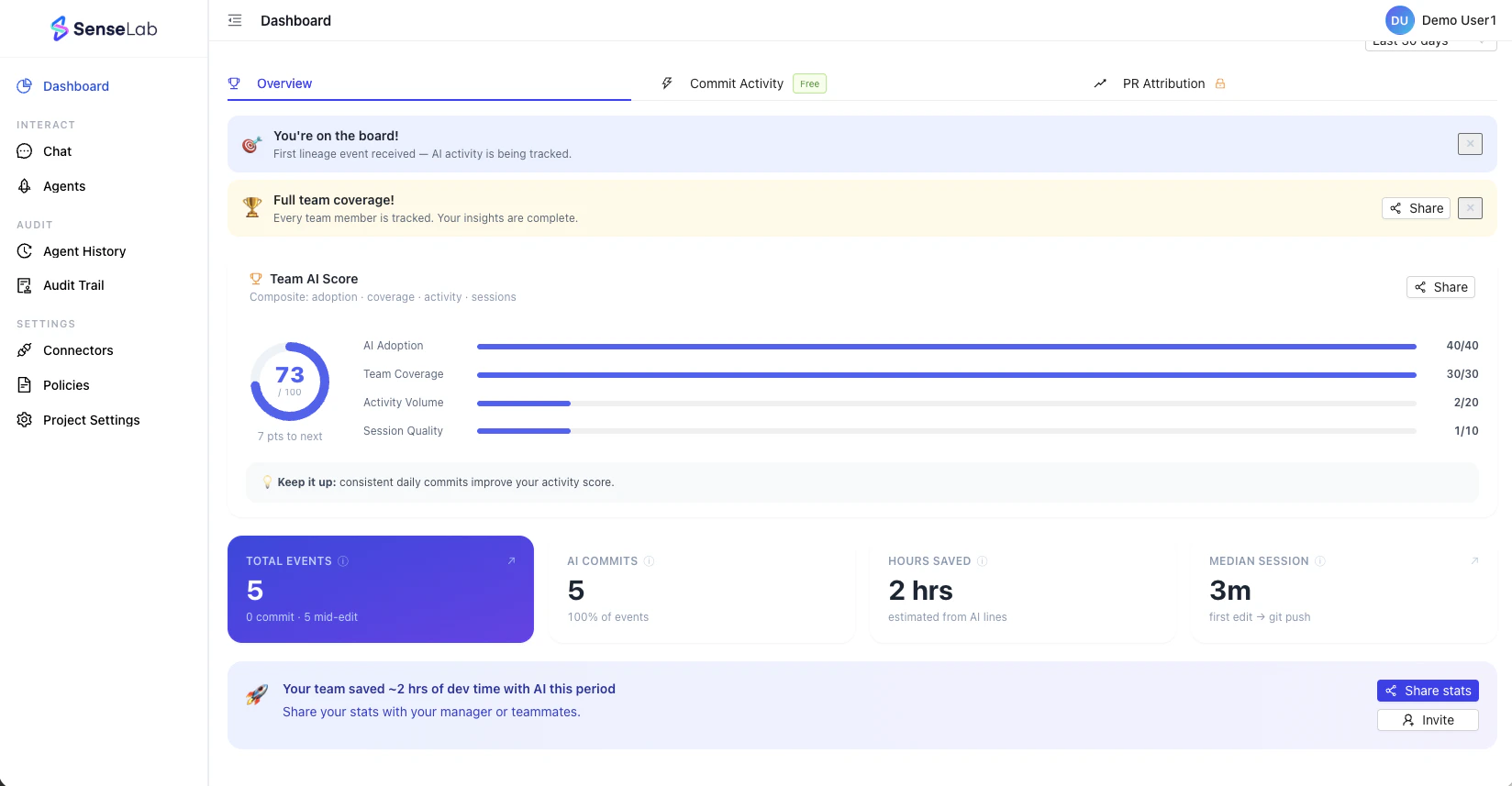
AI Lineage Overview
The Overview tab shows your Team AI Score — a composite metric built from four dimensions:
DimensionWhat it measuresMax points
AI Adoption% of commits that are AI-assisted40
Team Coverage% of the team being tracked30
Activity VolumeVolume of AI-assisted edits and commits20
Session QualityDepth and consistency of AI coding sessions10
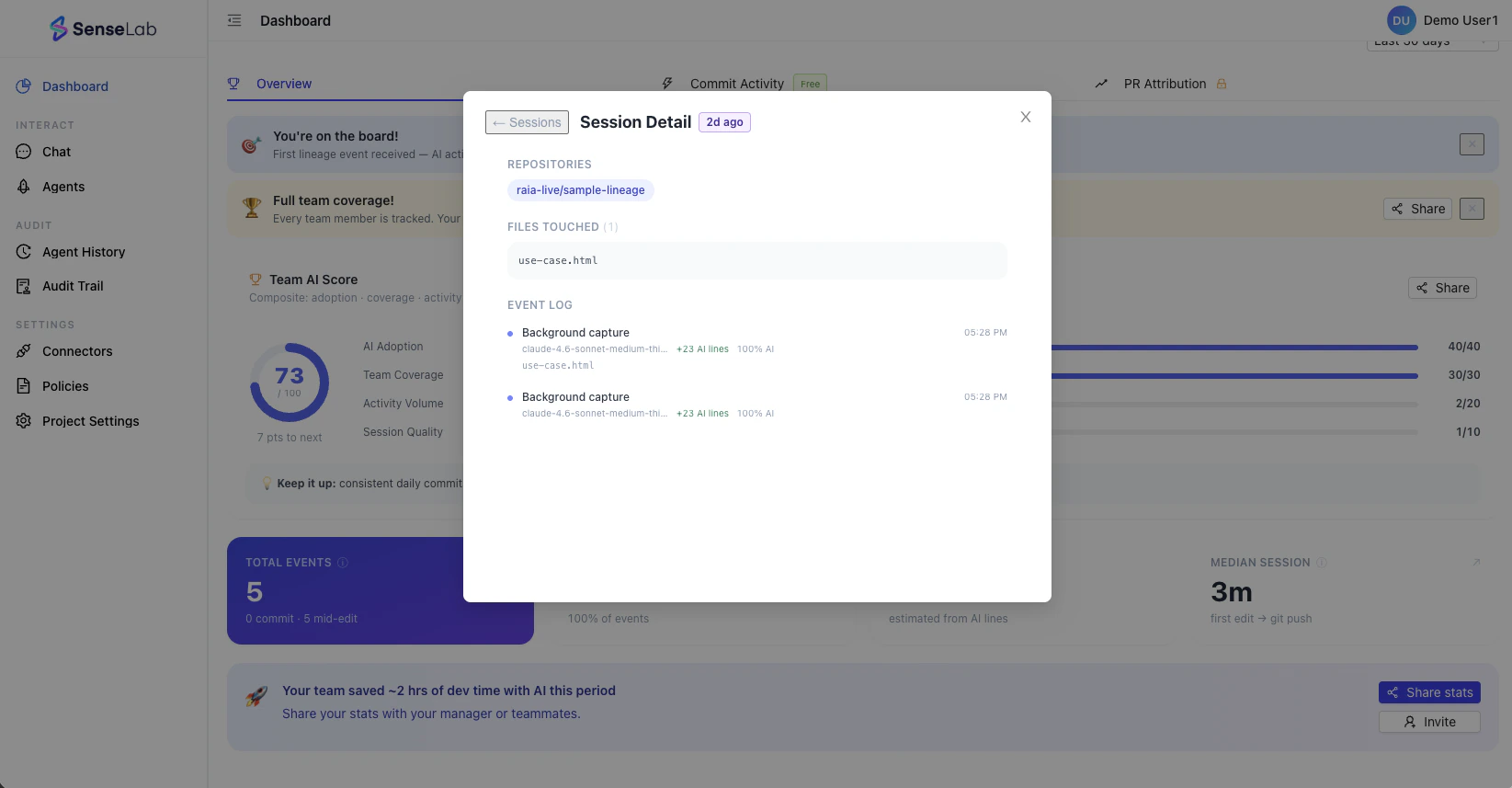
Below the score, you get real-time stats: Total Events, AI Commits, Hours Saved, and Median Session (time from first edit to git push). SenseLab also surfaces your biggest gain — the one metric most worth improving next.

Commit Activity — 3D Activity View

3D Activity View
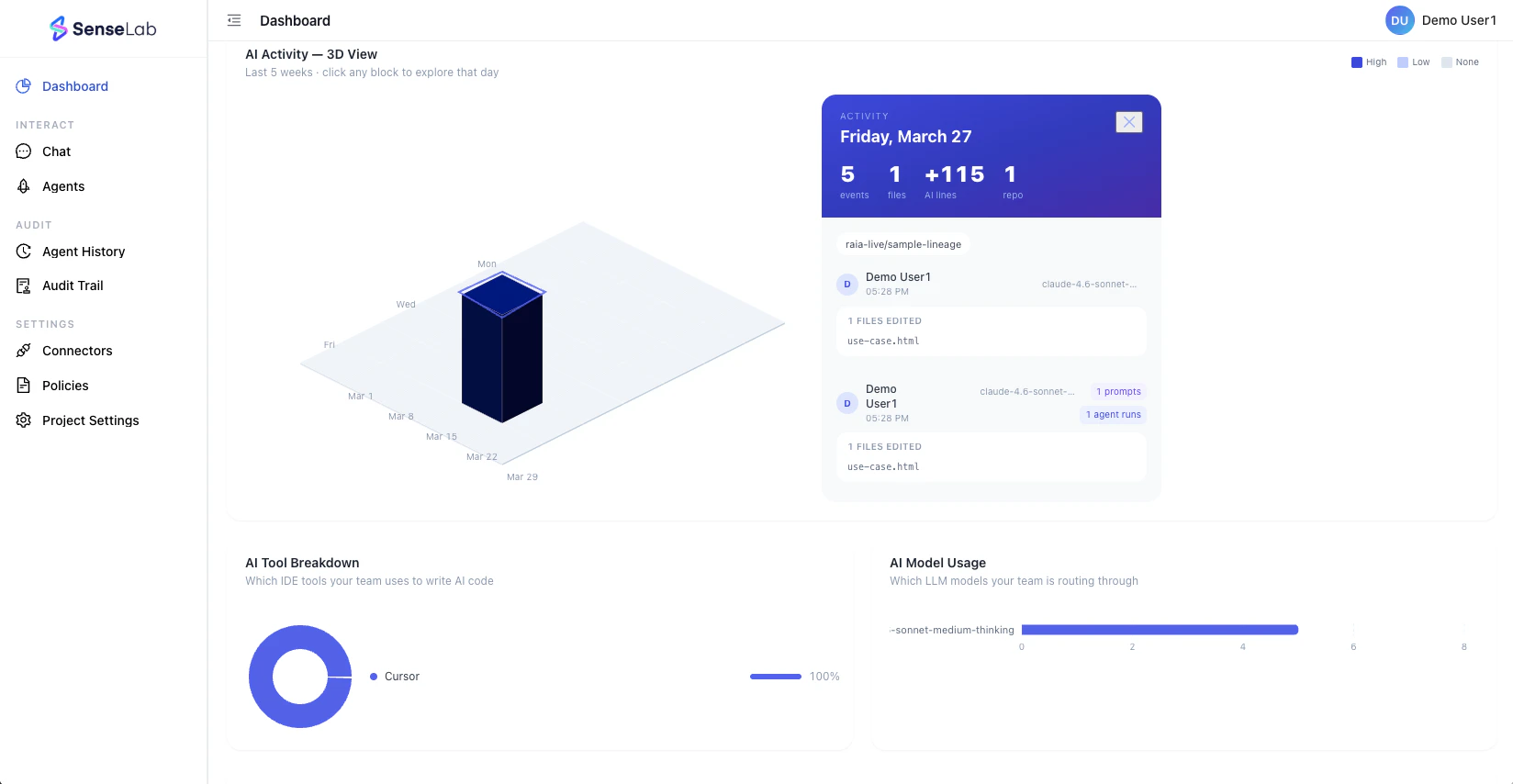
The Commit Activity tab shows a 3D view of AI activity across the last 5 weeks. Each block represents a day — height indicates volume. Click any block to drill into that day’s events: which developer was active, which files were touched, which model was used, how many prompts were sent, and how many agent runs occurred. This is the view that answers: “What was my team actually doing with AI last week?”

AI Tool Breakdown and Model Usage

AI Tool Breakdown and Model Usage
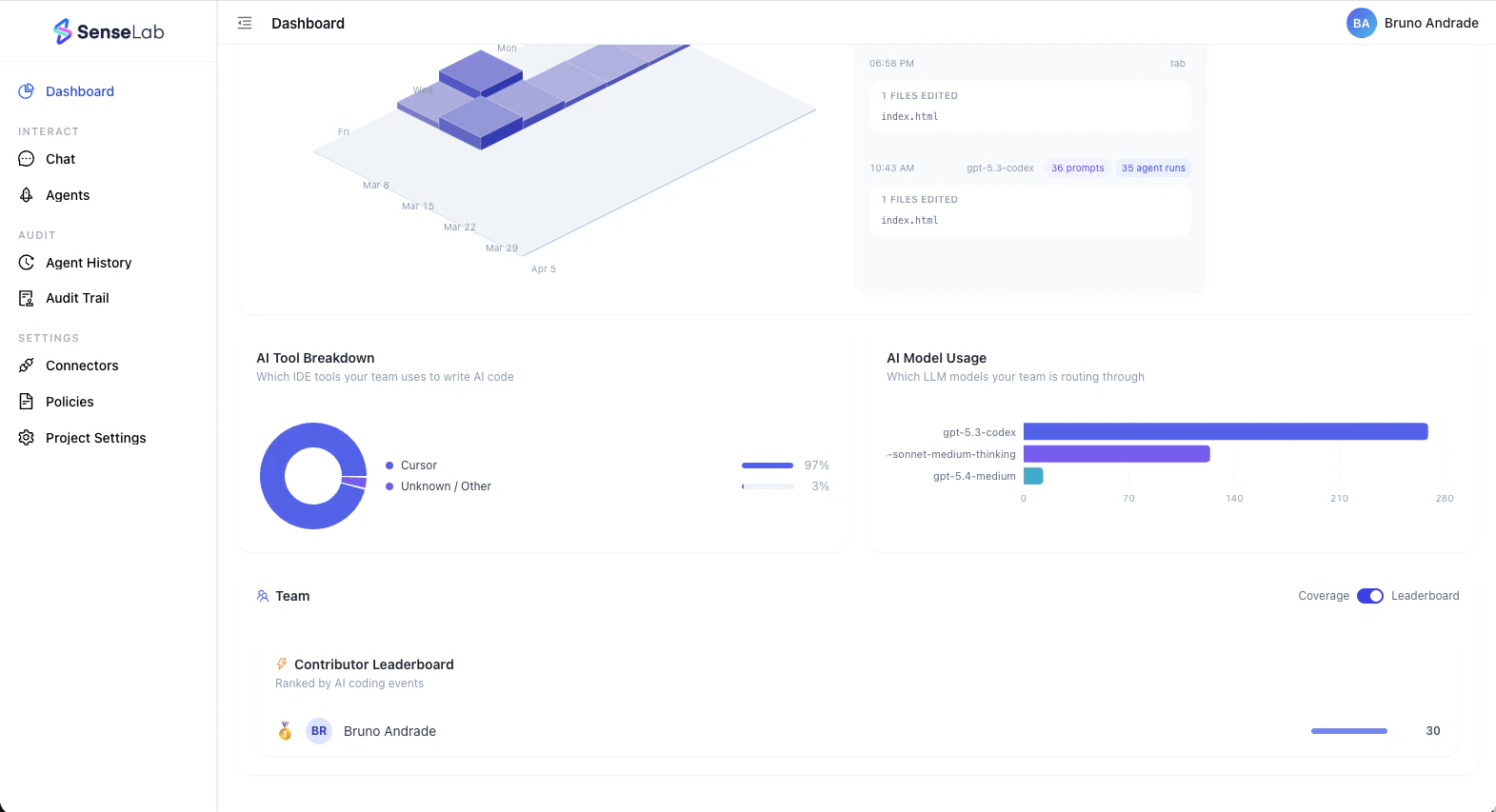
Two side-by-side charts show you exactly what your team is using:
  • AI Tool Breakdown — which IDEs and AI coding tools (Cursor, Copilot, Claude Code, Windsurf, etc.) are driving output, and in what proportion
  • AI Model Usage — which LLMs your team is routing through (GPT-4o, Claude, Gemini, etc.) and how heavily each is used
This matters when you’re making decisions about tooling spend, standardizing on a stack, or understanding model-level exposure.

Team Coverage and Leaderboard

Screenshot2026 04 06at9 00 27AM
The Team section shows who is tracked and who isn’t. Full coverage means complete insights — partial coverage means blind spots in your lineage data. Toggle between Coverage view (who’s tracked, with live status) and Leaderboard view (ranked by AI coding events) to understand both adoption breadth and individual contribution.

Shareable Adoption Dashboard

Team Coverage
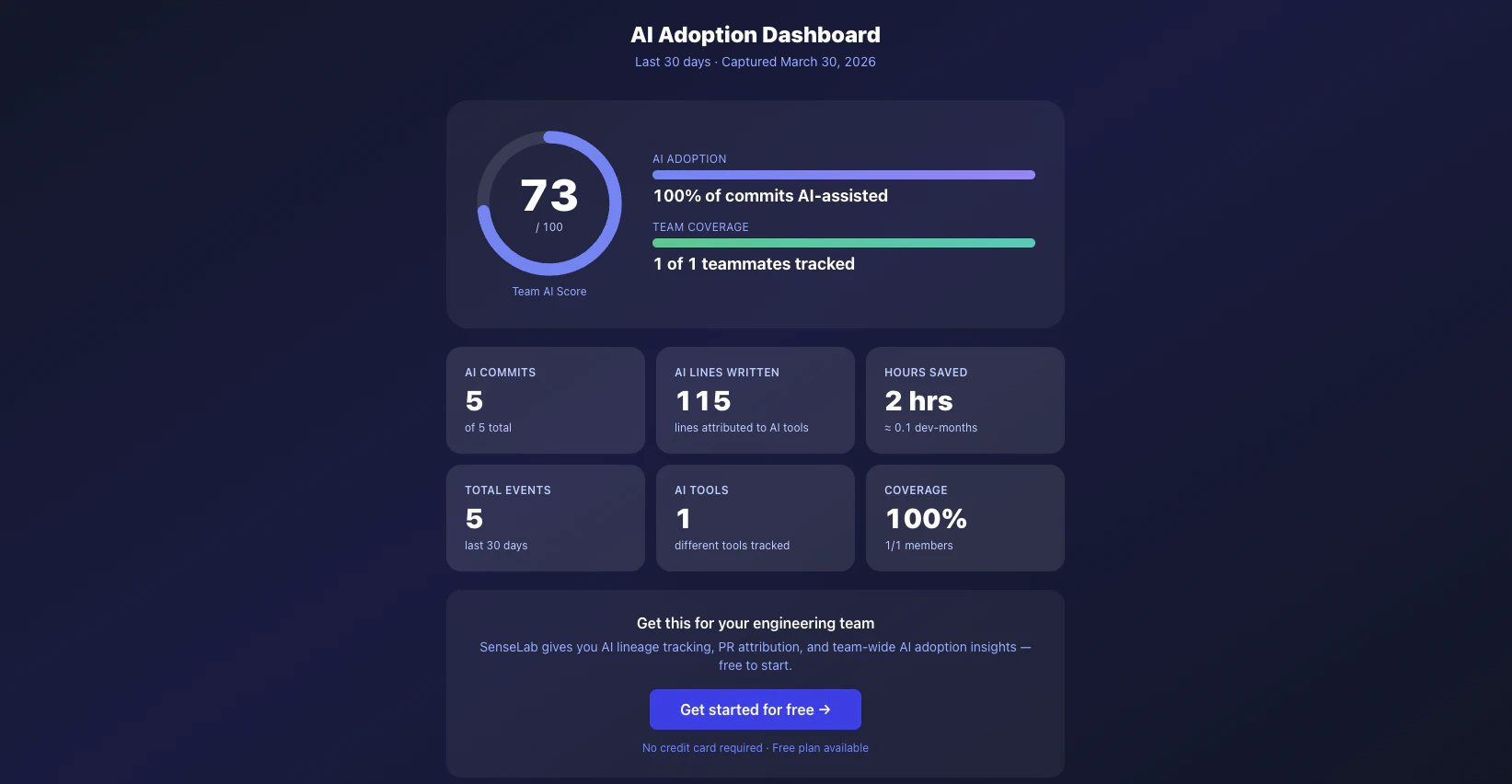
SenseLab generates a shareable AI Adoption Dashboard snapshot — a clean, exportable summary showing Team AI Score, AI Commits, AI Lines Written, Hours Saved, Total Events, Tools Used, Models Used, and Coverage. Use it to share progress with your manager, present AI ROI to leadership, or give a team member a view of where things stand — without giving them access to the full dashboard.