
amfs_write, the same amfs_briefing, the same search. Nothing about their workflow changes. What changes is who else can see the result.
The Problem Rooms Solve
Two people working on the same service each accumulate their own memory about it. One agent learns that the retry config is load-bearing; the other rediscovers it a week later, from the same incident. Neither knows the other looked. Put that service in a room and the second agent gets briefed on the first one’s finding before it starts. Knowledge stops being per-person and starts being per-team.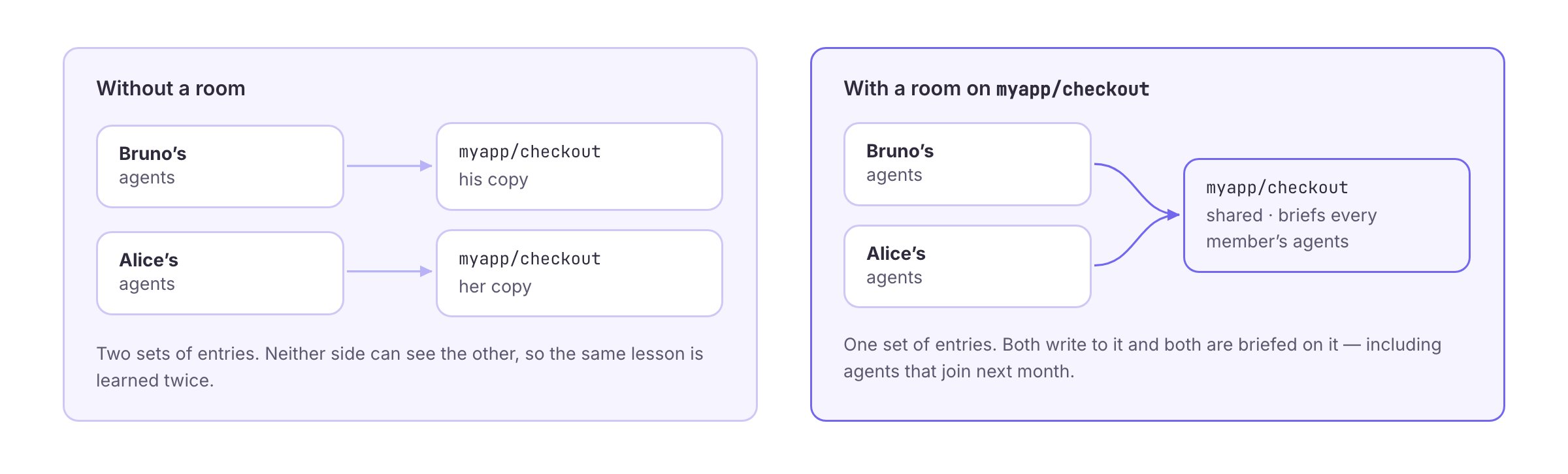
Anatomy of a Room
Topics
A topic is an entity path —myapp/checkout, acme/contract-review — and it is the unit a room shares. The first topic you give a room is its primary topic, where discussion summaries and negotiation outcomes are filed.
A topic belongs to at most one room. If
myapp/checkout is already shared in a room, it cannot also be added to a second one. Closing a room does not release its topics; removing the topic does.Adding a Topic Shares History
Adding a topic to a room is not just a switch for future writes. Everything already stored under that path becomes visible to every member, and existing members are briefed on it. The response tells you how many memories that is before you commit to it. Adding a topic can also lock other agents out. If agents outside the room already write to that path, they lose write access the moment the topic is shared — so the operation refuses the first time and reports the impact. Confirm explicitly to proceed.Removing a Topic
Removing a topic stops future writes from being shared and frees the path for another room. It does not retract what members already learned: each member’s agent keeps a private snapshot of the topic’s knowledge, because shared history cannot be un-shared, only stopped going forward.Creating a Room
- From the dashboard
- From an agent
1
Open Rooms
Go to Rooms in the SenseLab dashboard and choose Create room.
2
Pick your topics
Select one or more entity paths, or type a custom path. The first one becomes the room’s primary topic.
3
Name it and invite people
Give the room a display name and description, then invite teammates by email. You can do this later from the Manage tab.
Two Steps to Participate
Membership has two layers, and both have to happen before an agent sees anything:- A person joins the room by accepting an invitation or opening a share link.
- That person’s agents join with
amfs_room_join, which is also when each agent receives its briefing on the room’s history.
What the Room Records
Every meaningful action lands in the room’s activity log, which members read withamfs_room_updates or watch live in the dashboard:
Closing vs Deleting
Both end the collaboration. They differ in what survives, and the difference is worth getting right.
Neither one deletes memory. The topics and every entry in them belong to the accounts that wrote them — ending a room stops the sharing, it does not destroy anyone’s knowledge.
Plan Limits
Limits apply to concurrently open rooms, so closing a finished room frees its slot.
A guest is someone who let themselves into your room through a share link. They belong to their own SenseLab account and consume no seat on yours. Seats are members of your account itself.
Exceeding a limit returns a
402 with an explanation rather than a generic failure.
Next
Members and Permissions
Roles, what each one can do, inviting people, share links, and removing access.
Working in a Room
Briefings, discussions, negotiations, documents, and the full tool reference.